Plan with Claude or ChatGPT, shop with PlateParrot
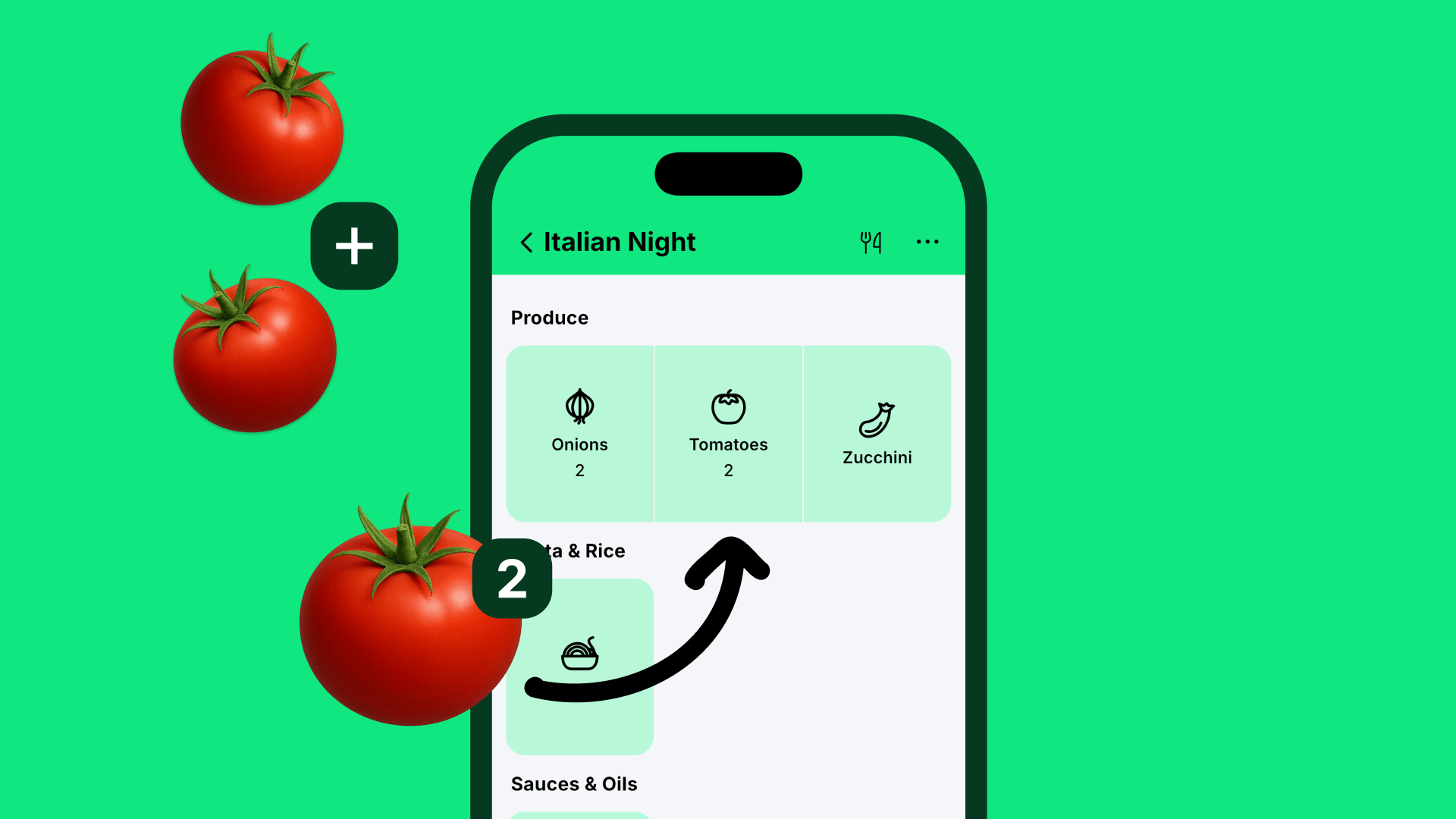
Ask your AI assistant to plan the week’s dinners, and the ingredients land on your PlateParrot shopping list. The PlateParrot connector links Claude or ChatGPT to your PlateParrot account. Your assistant can then read your lists and recipes and add to them. It cannot change or delete anything.
The connector address
Enter this address when you add the connector:
https://mcp.plateparrot.com/mcp
You need the PlateParrot app on your phone and a PlateParrot account you are signed in to. You confirm the connection once in the app. You never type a password into your assistant.
Connect Claude
You set up the connector in Claude in your browser or in the Claude desktop app. The labels below are from Claude’s English interface.
- Go to Customize > Connectors, click + Add and then Add custom connector.
- Enter PlateParrot as the name, paste the address above and click Continue.
- Under Authentication, choose Sign in now. Under OAuth client, choose Register automatically. Click Add.
- Claude opens a PlateParrot page with a QR code. Scan it with your phone camera. PlateParrot opens and shows who wants to connect. Tap Connect.
- The page takes you back to Claude by itself. In a chat, click +, then Connectors, and switch PlateParrot on.
On the Free plan, Claude allows one custom connector. On Team and Enterprise plans, an owner first adds the connector under Organization settings > Connectors (Add, then Custom, then Web). Members then click Connect next to PlateParrot under Customize > Connectors.
Connect ChatGPT
ChatGPT accepts your own connectors in developer mode. It is available on the web with the Plus, Pro, Business, Enterprise and Education plans. The labels below are from ChatGPT’s English interface.
- Open Settings > Security and login and switch on Developer mode.
- Go to Plugins and click the plus button.
- Enter PlateParrot as the name and a short description. Under Connection, choose Public endpoint and paste the address above. Create the app.
- ChatGPT opens the PlateParrot page with the QR code. Scan it and tap Connect in the app.
- In a chat, open the + menu, choose Developer mode and select PlateParrot. ChatGPT asks you to confirm before the assistant adds something.
No camera at hand?
On the PlateParrot page, click Show a code to type in. In the app, go to Settings > Account > AI assistants, tap Enter code and type the eight characters. If the page is open on your phone, tap Open in PlateParrot instead of scanning.
What the assistant can and cannot do
The assistant can:
- see your shopping lists and their items, including lists others share with you
- find your recipes by their title and read their ingredients and steps
- add items to a list
- put a recipe on a list
- save a new recipe
The assistant cannot:
- check off, change or delete anything
- create new lists
- see who else is a member of a shared list
- change your password or delete your account
Every connection shows up in the app under Settings > Account > AI assistants.
Try these prompts
- “Plan three vegetarian dinners for this week and put everything I need on my PlateParrot shopping list.”
- “Find my lasagne recipe in PlateParrot and put it on my shopping list for six people.”
- “Save this recipe in PlateParrot:” followed by the recipe text.
When something goes wrong
The code has expired. A connection request is valid for ten minutes. Start connecting again in your assistant. It opens a fresh page with a new QR code.
The QR code opens a web page instead of PlateParrot. Either the app is not installed yet (the page links to the App Store and Google Play), or your scanner app opened the link in its own browser. Use your phone’s built-in camera, or use the code to type in.
The app asks you to sign in. The assistant connects to your PlateParrot account. Sign in or create an account in the app, then scan the QR code again.
Too many codes are open. Wait a few minutes and try again.
The assistant does not use PlateParrot. Check that the connector is switched on in that chat, or mention PlateParrot in your request.
Disconnect
In the app, go to Settings > Account > AI assistants and tap Disconnect next to the assistant. Access ends at once. Removing the connector in Claude or ChatGPT does not end the connection on our side, so disconnect in the app as well. You can connect again at any time.
Privacy
For the pairing we keep the name the assistant gives itself, its return address and the code, for at most ten minutes. For an active connection we keep the assistant’s name and address, so that you can see and end it. The access key carries your email address. What the assistant reads, such as your lists and recipes, goes to its provider and is processed under the provider’s rules. Disconnecting deletes the details we keep about the connection. Section 3 j) of our privacy policy has the full picture.
Contact
Questions or problems? Write to [email protected] or use our contact page.
FAQ
What does the PlateParrot connector cost?
PlateParrot charges nothing for it. You need the PlateParrot app with an account, and an AI assistant whose plan allows custom connectors.
Can the AI delete my lists or recipes?
No. The assistant can read and add, but it cannot check off, change or delete anything, and it cannot change your password or delete your account.
How long does a connection last?
Until you end it. A connection does not expire on its own. You end it in the PlateParrot app under Settings > Account > AI assistants.
Does it work without the app?
No. You confirm the connection in the PlateParrot app, and the assistant works with the lists and recipes of the account you are signed in to.